Appearance
Settings
Complete reference guide for configuring DeskFlow Pro settings across all areas of your dealership setup.
Settings Overview
DeskFlow Pro provides comprehensive settings to customize your dealership's configuration, presentation preferences, and operational defaults. Settings are organized into logical sections for easy management.
Manager Access Required
Most settings require Manager role permissions. Operators can only access personal user settings.
Dealership Settings
Configure your primary dealership information and operational defaults.
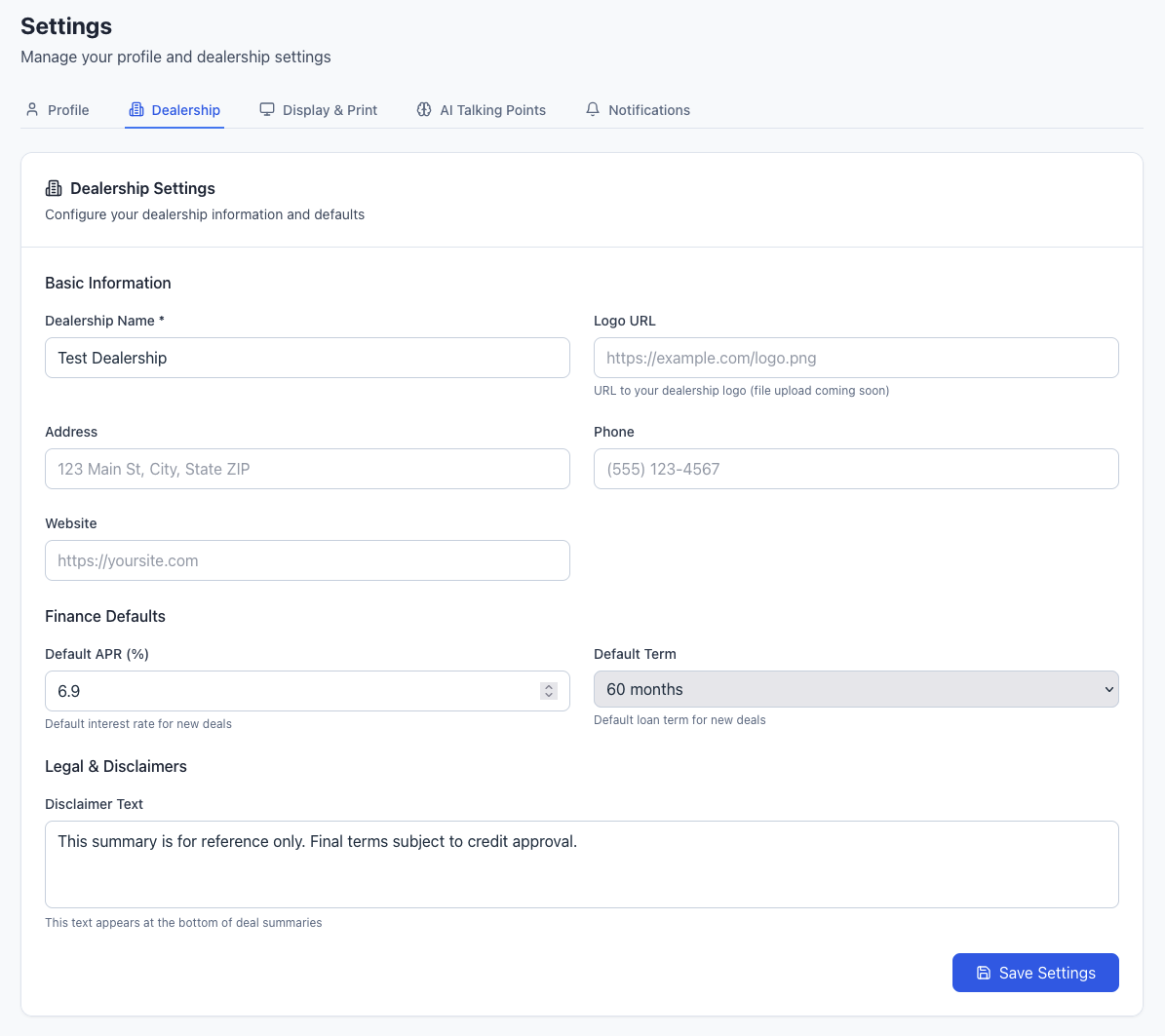
Dealership Information
- Dealership Name - Your business name displayed throughout the system
- Contact Information - Primary phone and email for customer communications
- Address Details - Physical location for documentation and branding
- Business Hours - Operating schedule for customer reference
Financial Defaults
- Default Interest Rate - Standard APR used for financing calculations
- Default Loan Term - Standard length of financing agreements (months)
- Down Payment Requirements - Minimum down payment percentages
- Trade-in Policies - Default trade-in evaluation settings
Document Settings
- Legal Disclosures - Required state and federal disclosures
- Terms & Conditions - Standard warranty terms and conditions
- Custom Clauses - Dealership-specific contract language
- Signature Requirements - Digital signature configuration
Display Settings
Customize the appearance and presentation options for customer-facing interfaces.
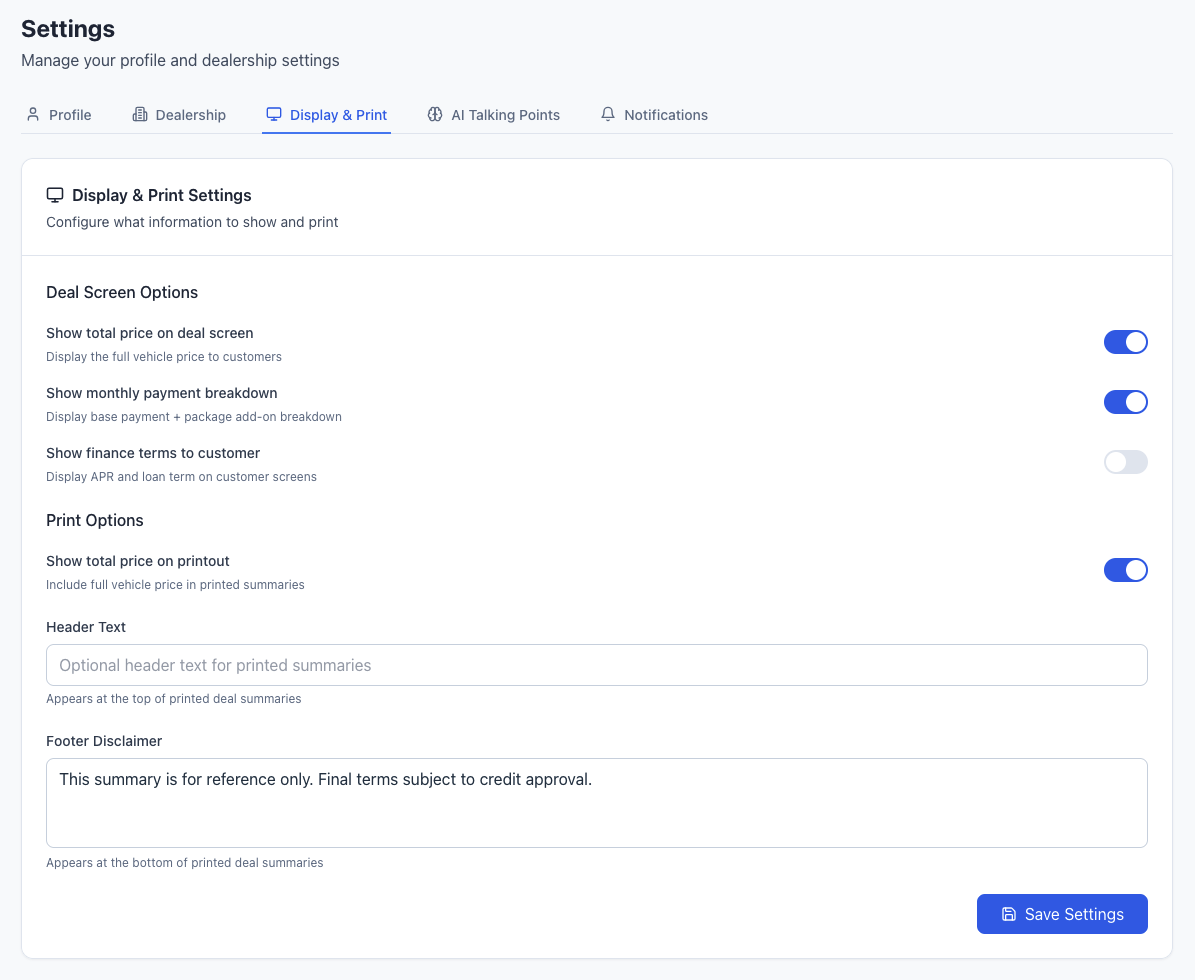
Presentation Themes
- Color Scheme - Primary and accent colors for presentations
- Font Selections - Typography choices for customer documents
- Logo Placement - Your dealership logo positioning and sizing
- Background Options - Professional backgrounds for presentations
Customer Interface
- Layout Preferences - How information is organized for customers
- Feature Highlighting - How to emphasize key warranty features
- Pricing Display - Monthly vs. total pricing presentation options
- Comparison Views - Side-by-side package comparison layouts
Print & PDF Settings
- Document Templates - Standard layouts for printed materials
- Branding Elements - Logo, colors, and contact information placement
- Page Formatting - Margins, headers, and footer configurations
- Quality Settings - Print resolution and image quality options
AI Talking Point Settings
Configure AI-generated sales talking points and feature descriptions.
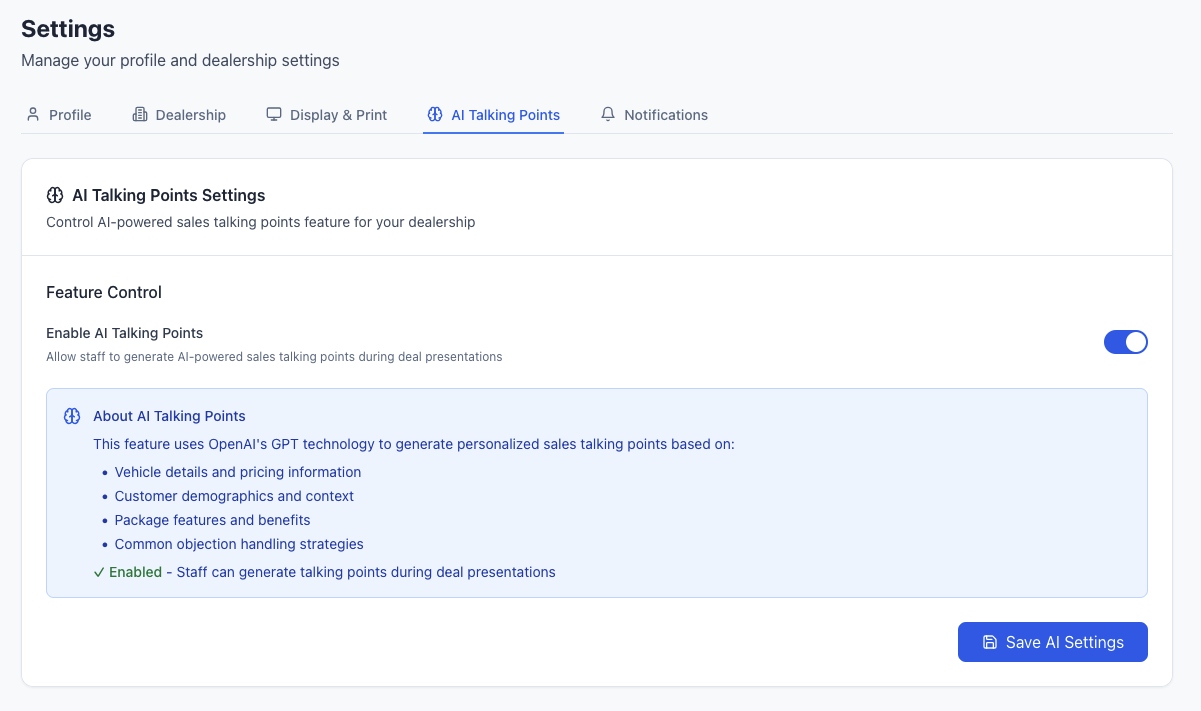
Talking Point Generation
- Tone & Style - Professional, conversational, or persuasive approach
- Content Focus - Emphasize benefits, features, or value proposition
- Length Preferences - Short bullet points vs. detailed explanations
- Industry Terminology - F&I-specific language and terminology usage
Customization Options
- Dealership Voice - Align AI content with your brand personality
- Target Audience - Adjust language for your typical customer base
- Competitive Positioning - How to position against competitors
- Local Market - Region-specific considerations and language
Content Moderation
- Approval Workflows - Review AI-generated content before use
- Content Guidelines - Set boundaries for appropriate language
- Fact-Checking - Ensure accuracy of generated claims
- Brand Compliance - Maintain consistency with dealership messaging
User Settings
Personal preferences and account settings for individual users.
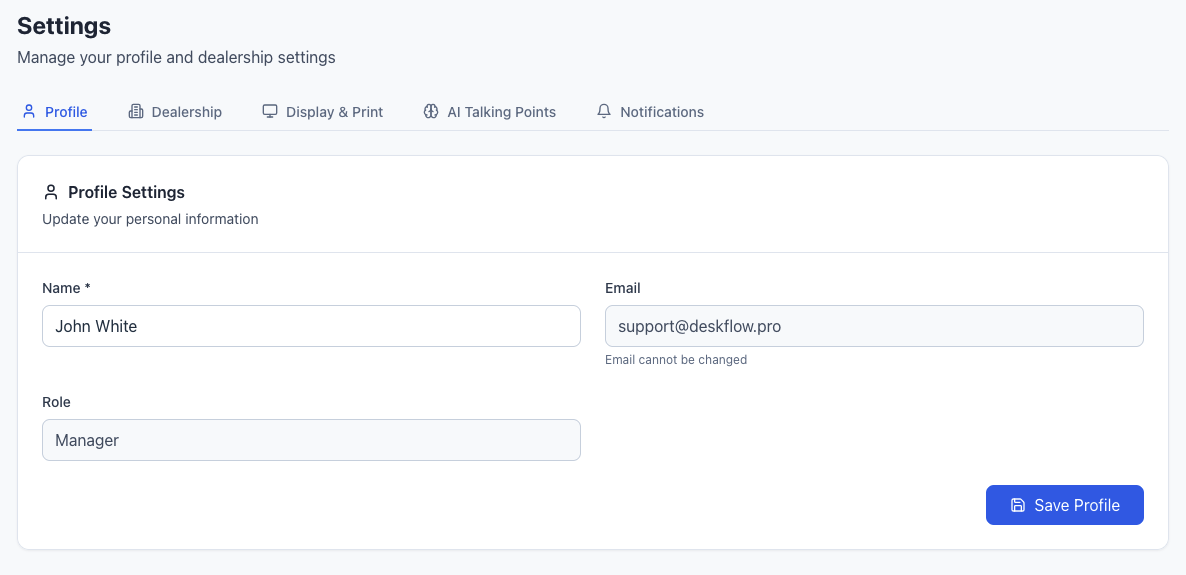
Account Preferences
- Profile Information - Personal details and contact information
- Password Management - Change password and security settings
- Email Preferences - Communication and notification preferences
- Time Zone - Local time zone for scheduling and timestamps
Interface Customization
- Dashboard Layout - Customize your personal dashboard view
- Default Views - Set preferred starting pages and filters
- Keyboard Shortcuts - Enable or customize hotkey combinations
- Accessibility Options - Font size, contrast, and screen reader support
Work Preferences
- Default Deal Values - Personal default values for new deals
- Quick Actions - Customize frequently used shortcuts
- Template Preferences - Preferred package templates and layouts
- Performance Tracking - Personal goal setting and progress monitoring
Notification Settings
Configure when and how you receive notifications from DeskFlow Pro.
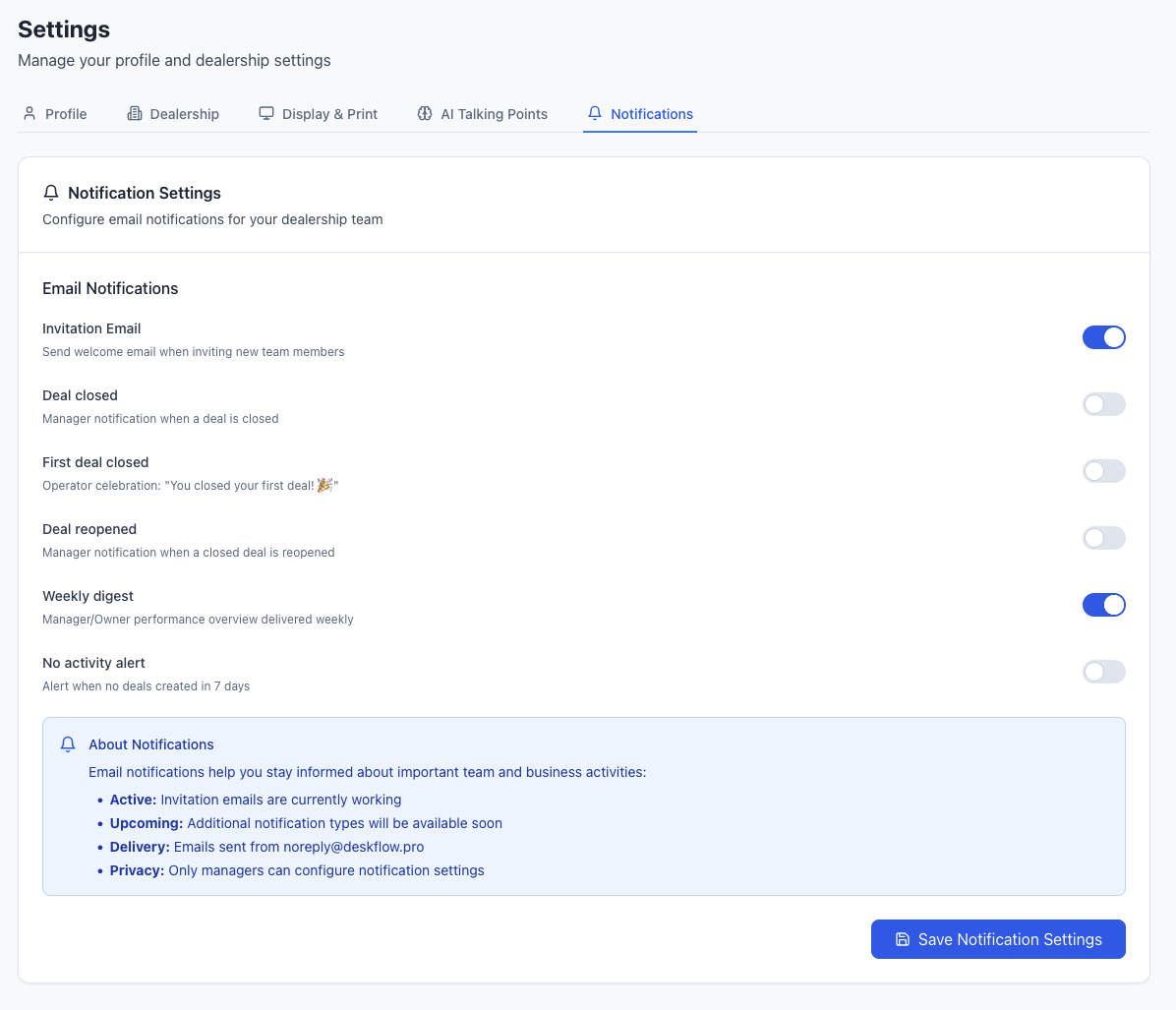
Email Notification Preferences
Control which email notifications you receive:
- Deal Closed Notifications - Get notified when deals are successfully closed
- First Deal Closed Notifications - Special notification for milestone achievements
- Deal Reopened Notifications - Get alerted when previously closed deals are reopened
- Weekly Digest - Summary of weekly activity and performance
- Weekly No Activity - Reminder when no deals have been processed in a week
Notification Types
Each notification type can be individually enabled or disabled:
Deal Status Changes:
- Important updates about deal progression
- Closure confirmations and documentation
- Reopening alerts for follow-up actions
Performance & Activity:
- Weekly summary of dealership activity
- Inactivity reminders to encourage engagement
- Performance milestone notifications
System Communications:
- Critical system updates and maintenance notices
- Security alerts and account changes
- Feature updates and product announcements
Managing Your Preferences
Use the toggle switches to enable or disable specific notification types based on your preferences. Changes take effect immediately and apply to all future notifications of that type.
Advanced Settings
System Integration
- CRM Integration - Connect with existing customer relationship management systems
- Accounting Software - Sync with dealership accounting platforms
- DMS Integration - Dealer management system data synchronization
- Third-Party APIs - Custom integrations with other dealership tools
Data Management
- Backup Preferences - Automated data backup scheduling
- Data Retention - How long to keep historical deal information
- Export Settings - Default formats and fields for data exports
- Archive Policies - When and how to archive old deals
Security Configuration
- Session Timeouts - Automatic logout after inactivity
- IP Restrictions - Limit access to specific network locations
- Two-Factor Authentication - Enhanced security requirements
- Audit Logging - Track user actions for compliance
Settings Best Practices
Initial Setup
- Start with dealership settings - Configure basic information first
- Set financial defaults - Establish standard rates and terms
- Customize display options - Match your dealership branding
- Configure AI preferences - Align with your sales approach
- Test notification settings - Ensure proper communication flow
Ongoing Management
- Regular reviews - Quarterly review of all settings
- User feedback - Gather input from team members on preferences
- Performance monitoring - Track how settings impact conversion rates
- Security updates - Keep security settings current with best practices
Change Management
- Document changes - Track what settings were modified and why
- Train team members - Ensure everyone understands new configurations
- Test thoroughly - Verify changes work as expected before going live
- Backup before changes - Always backup current settings before modifications
Troubleshooting Settings
Common Issues
- Settings not saving - Check browser permissions and network connectivity
- Display problems - Clear browser cache and check compatibility
- Notification failures - Verify email addresses and notification preferences
- Integration errors - Confirm API credentials and connection settings
Getting Help
- Settings documentation - Reference this guide for detailed explanations
- Support team - Contact DeskFlow Pro support for technical assistance
- Training resources - Access video tutorials and best practice guides
- Community forum - Connect with other DeskFlow Pro users for tips
For team management and role-based access to settings, see Manager vs Operator permissions guide.