Appearance
Creating Deals
Learn how to create new deals in DeskFlow Pro, from entering customer information to generating AI vehicle images.
Starting a New Deal
Access the deal creation form from either the Dashboard or Deals page.
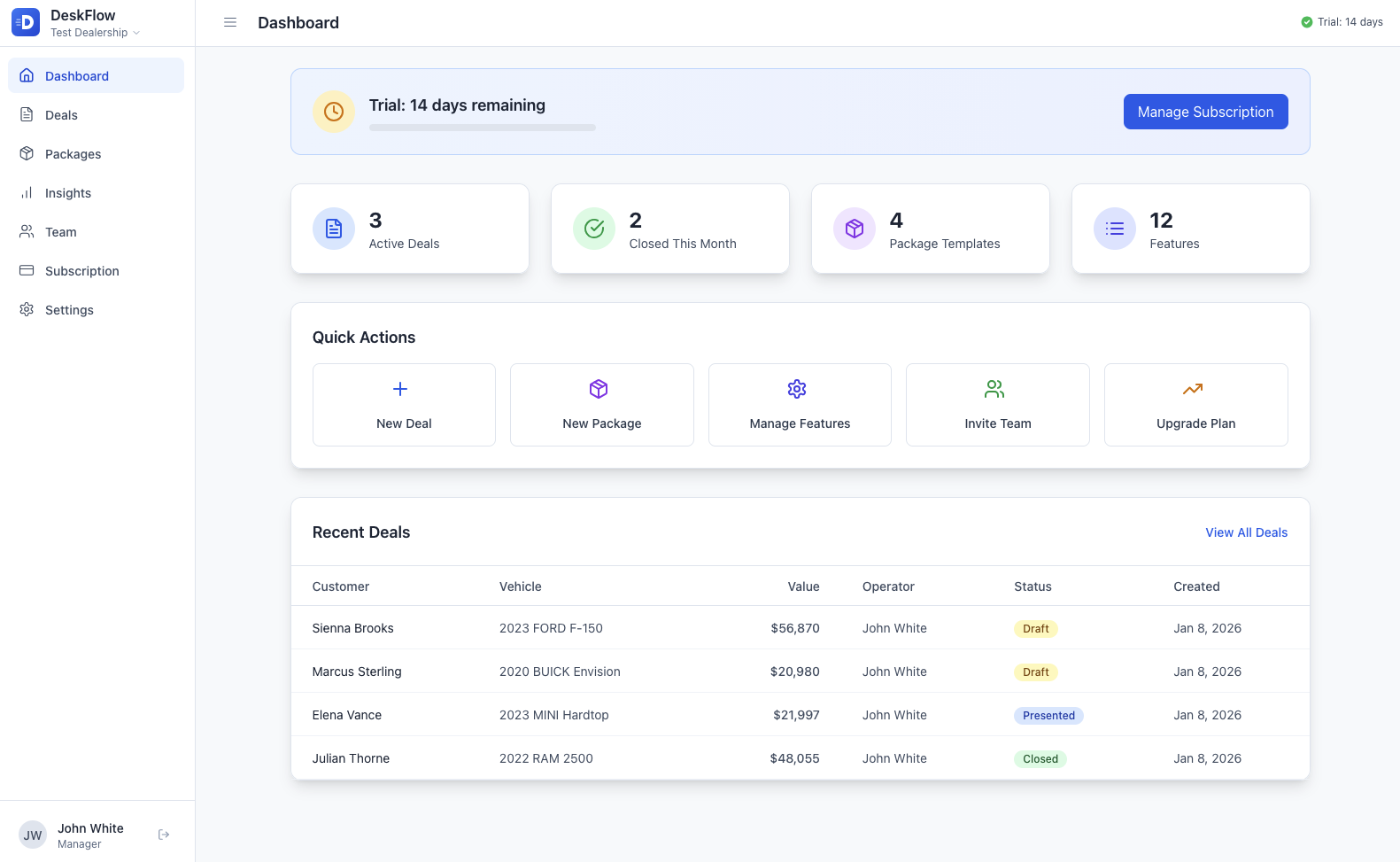
From the Dashboard, click the New Deal button in the Quick Actions section. From the Deals page, click the + New Deal button in the top right.
Customer Information
Start by entering the customer's basic contact details.

Fill out the required fields:
- Customer Name - Full name (required)
- Phone - Contact phone number
- Email - Email address for communication
Vehicle Information
VIN Decode & AI Vehicle Image
Enter the vehicle's VIN number to automatically populate vehicle details and generate an AI image.
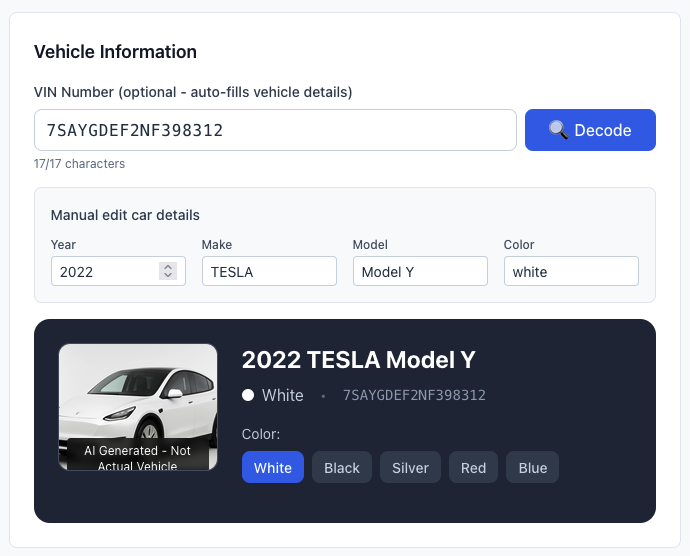
- Enter the 17-character VIN in the VIN Number field
- Click the 🔍 Decode button
- Vehicle details (Year, Make, Model) will auto-populate
- AI vehicle image generates automatically
TIP
The VIN field is optional. You can manually enter vehicle details if the VIN is unavailable or doesn't decode properly.
Manual Vehicle Details
If VIN decode doesn't work or VIN is unavailable, manually enter:
- Year - Vehicle year
- Make - Manufacturer (e.g., RAM, Ford, Toyota)
- Model - Specific model (e.g., 2500, F-150, Camry)
- Color - Vehicle color
AI Vehicle Image Features
DeskFlow Pro generates realistic vehicle images using AI based on the vehicle details.
The generated image displays:
- Realistic representation of the Year/Make/Model
- Current selected color
- VIN number reference
Color Selection:
- Click any color button (White, Black, Silver, Red, Blue) to change the vehicle color
- The AI image updates to reflect the selected color
- Use this feature to match the actual vehicle or customer preference
INFO
Generated images are AI-created representations and may not reflect the exact vehicle being sold.
Financial Information
Complete the deal by entering the financial details:
- Sale Price - Total vehicle sale price
- Down Payment - Customer's down payment amount
- Trade-in Value - Value of customer's trade-in vehicle (if applicable)
Saving the Deal
Once all information is complete:
- Review all entered details for accuracy
- Click Create Deal to save
- The deal is now available for presenting to customers
TIP
Deals can be edited after creation. You can always return to update customer information, vehicle details, or financial terms before presenting to the customer.
Next Steps
After creating a deal, you can:
- Present the deal to customers with warranty packages
- Edit deal details if information changes
- View the deal in your deals list with status tracking