Appearance
Team Management
Learn how to invite team members, assign roles, and manage permissions in DeskFlow Pro.
Team Overview
Access team management from the main navigation to view and manage your dealership team.

The team management section shows:
- Current team members with their roles and status
- Invitation management for pending invites
- Role assignment for each team member
- Permission overview showing what each role can access
Role Types
DeskFlow Pro supports two role types with different access levels. For complete details on permissions and capabilities, see Manager vs Operator.
Role Assignment
Only Managers can invite new team members and assign roles. Operators cannot access team management features.
Inviting Team Members
Managers can invite new team members to join the dealership.
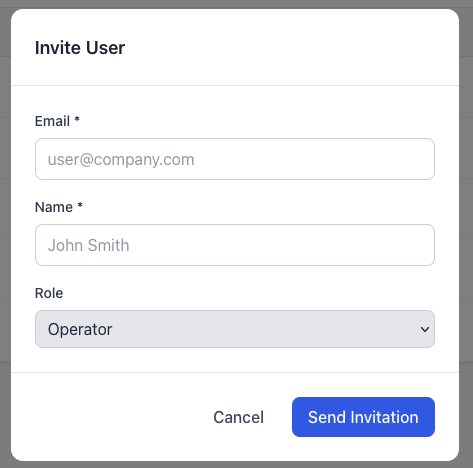
Invitation Process
- Click Invite Team Member from the team management page
- Enter email address of the person you want to invite
- Select role - Manager or Operator
- Add personal message (optional) to include with the invitation
- Send invitation via email
Invitation Details
The invitation modal allows you to:
- Set the role before sending the invite
- Include a welcome message personalizing the invitation
- Preview the invitation before sending
- Track pending invitations in the team list
Invitation Best Practices
Include a personal message explaining their role and what they'll be working on. This helps new team members understand their responsibilities from the start.
Managing Existing Team Members
Changing Roles
Managers can update team member roles:
- Locate the team member in the team list
- Click the role dropdown next to their name
- Select the new role (Manager or Operator)
- Changes take effect immediately
Removing Team Members
To remove a team member:
- Find the team member in the team list
- Click the actions menu (⋮) next to their name
- Select "Remove from team"
- Confirm the removal
Removing Managers
Be careful when removing other Managers. Ensure at least one Manager remains to maintain team access and administrative capabilities.
Team Member Status
Team members can have different statuses:
- Active - Full access to their assigned role permissions
- Pending - Invitation sent but not yet accepted
- Inactive - Temporarily suspended (retains access to own deals)
Best Practices
Role Assignment Strategy
- Assign Manager roles to senior staff who handle multiple aspects of F&I
- Use Operator roles for sales staff focused on individual deals
- Limit Manager count to maintain security and clear responsibility
- Start new team members as Operators until they demonstrate broader needs
Team Organization
- Use clear naming conventions for team member identification
- Regular role reviews to ensure permissions match current responsibilities
- Monitor team activity through insights and deal tracking
- Maintain role documentation for training and onboarding
Security Considerations
- Operators cannot see other operators' deals - maintains customer privacy
- Only Managers can access billing - protects financial information
- Role changes take effect immediately - no system restart required
- Removed team members lose access instantly - secure off-boarding
Next Steps
With your team properly set up:
- Train team members on deal creation workflows
- Set up package templates for consistent presentations
- Monitor team performance through dealership insights
- Review and adjust roles as your team grows
Effective team management in DeskFlow Pro ensures the right people have access to the right features while maintaining security and operational efficiency.