Appearance
Presenting Deals
Learn how to present warranty packages to customers using DeskFlow Pro's presentation mode and comparison tools.
Opening Presentation Mode
Once you've created a deal, you can present warranty packages to customers.
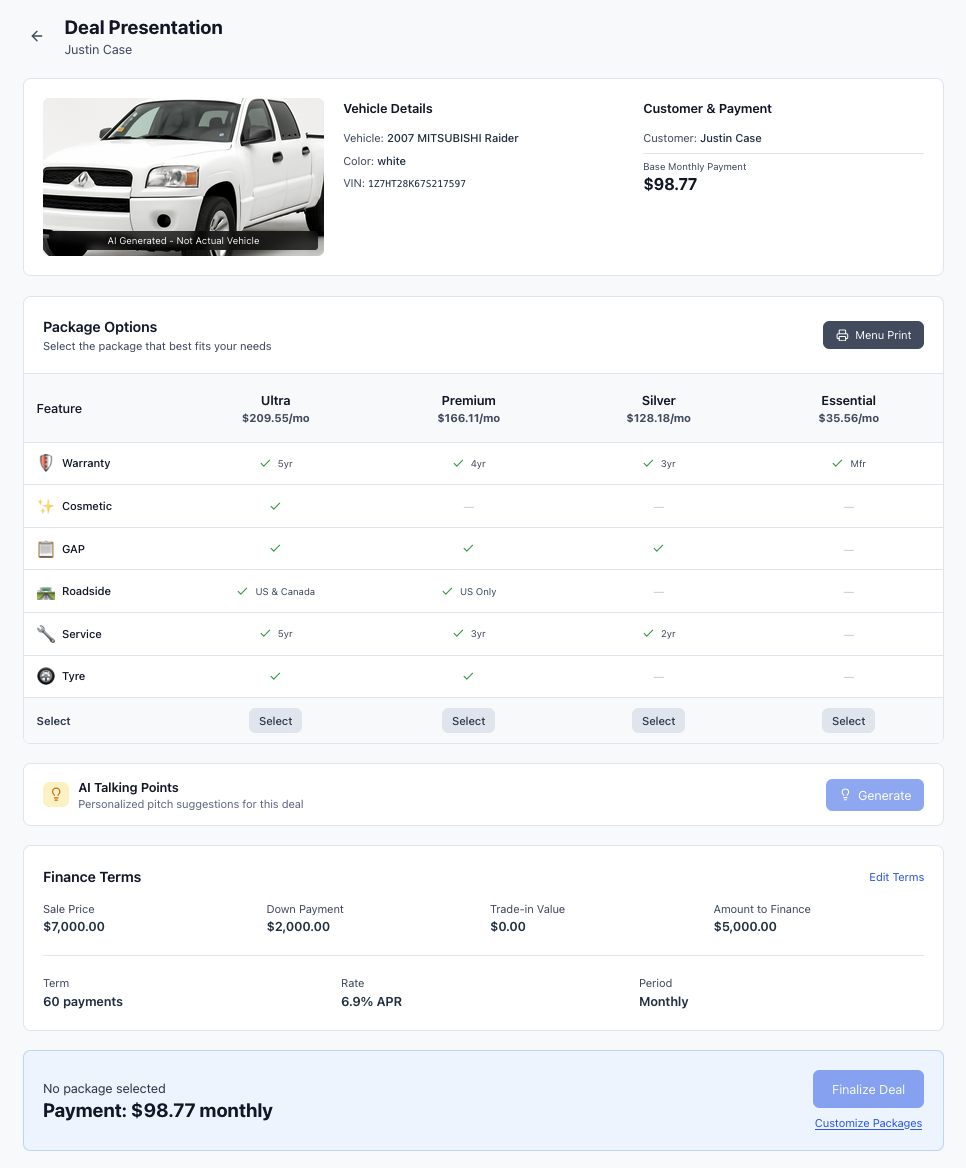
Navigate to your deal and enter presentation mode to display warranty packages in a customer-friendly format. The presentation view shows:
- Vehicle information with AI-generated image
- Available warranty packages with clear pricing
- Feature comparisons between packages
- Professional layout optimized for customer viewing
Package Selection
Customers can view and compare different warranty options:
- Package Overview - Each package displays its name, price, and key features
- Feature Comparison - Side-by-side comparison of what's included in each package
- Pricing Display - Clear monthly payment or total cost breakdown
- Selection Process - Customers can easily see differences between options
TIP
Use presentation mode on a tablet or secondary monitor facing the customer while you control the presentation from your main screen.
Quick Print Menu
Use the print menu to show customers package comparisons and help them understand their options.
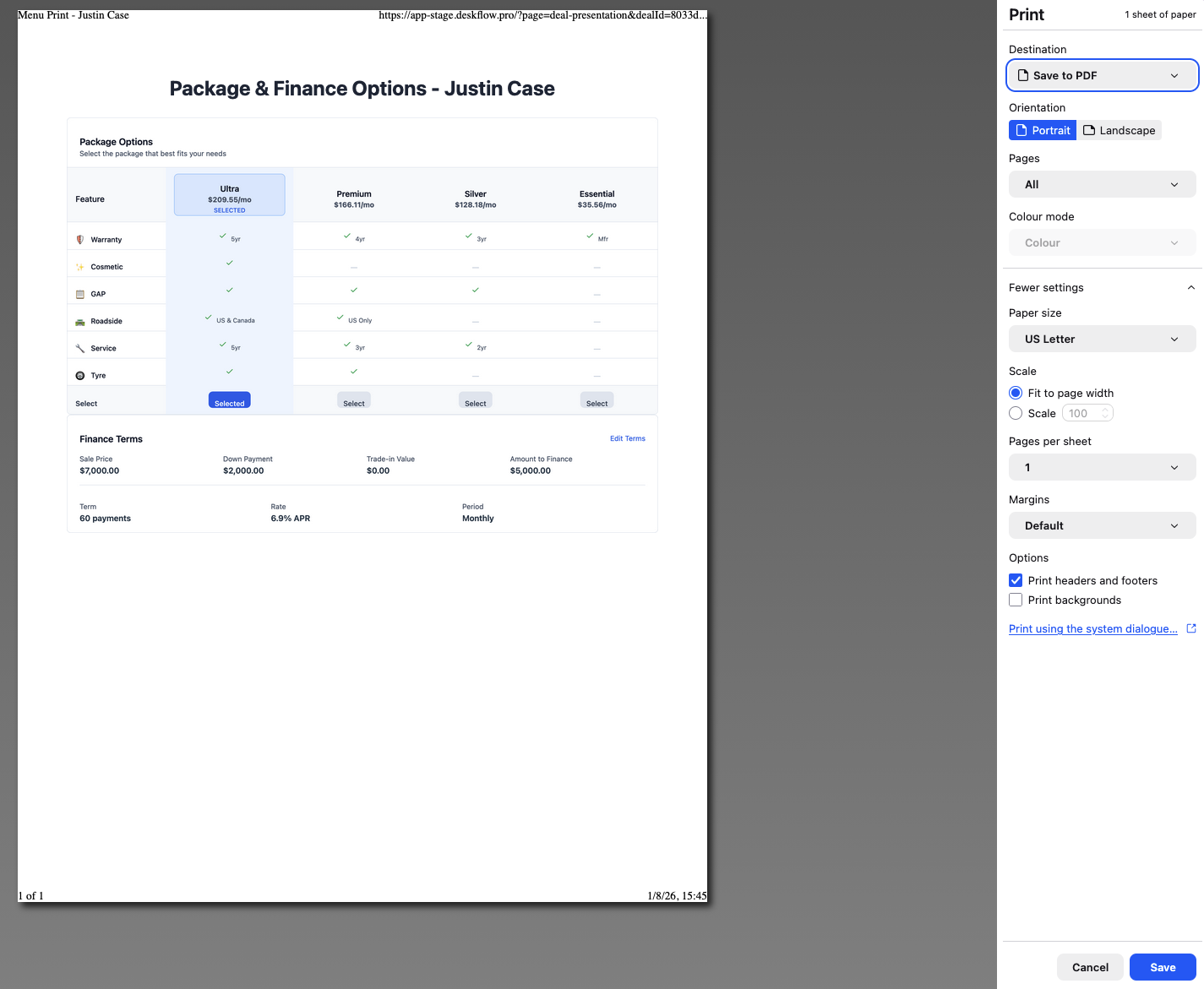
The print menu provides quick access to:
- Package Comparison - Side-by-side feature and pricing comparison
- Individual Package Details - Detailed breakdown of specific packages
- Cost Analysis - What customers gain/lose with different selections
- Missing Features - Clear view of what's not included in lower-tier packages
This helps customers make informed decisions by seeing exactly what they're getting with each option.
Print Preview & Final Documentation
Generate professional documentation for customer records and signatures.
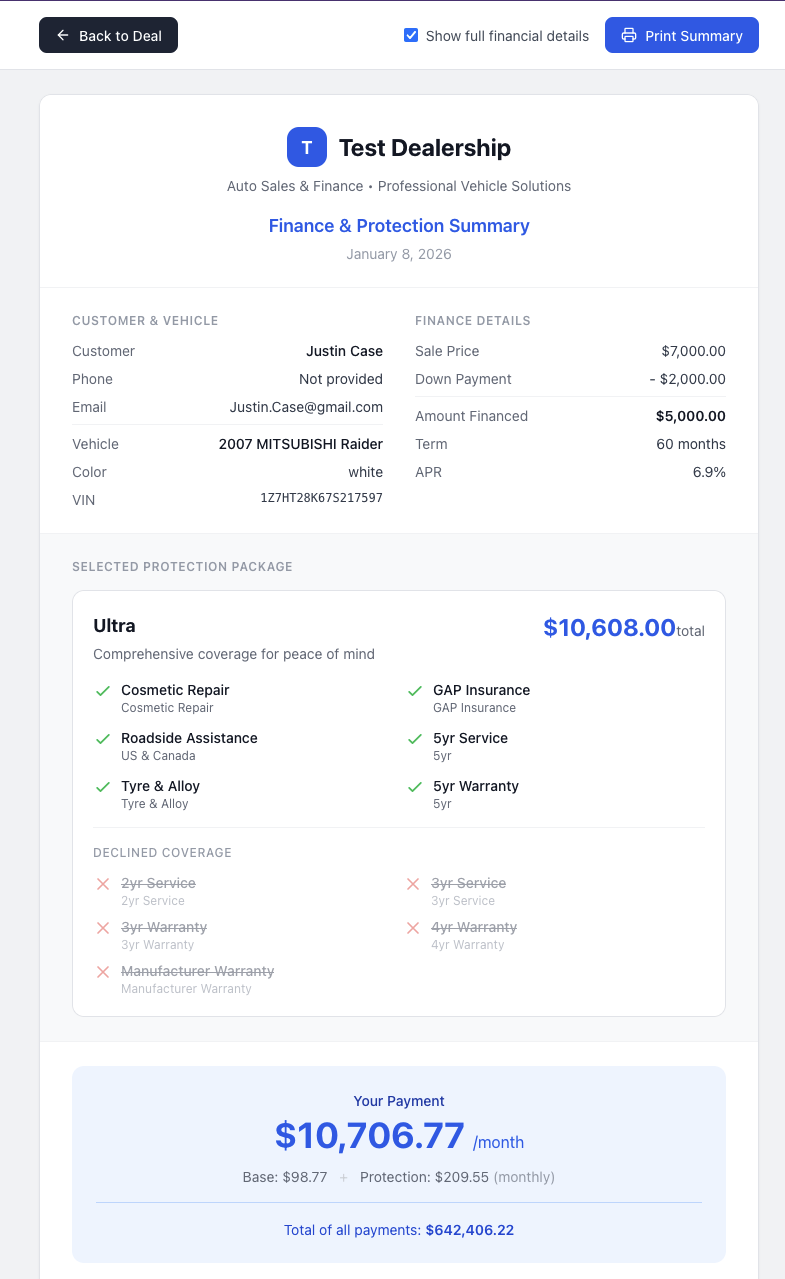
The print preview shows:
- Customer Information - Name, contact details, vehicle information
- Selected Package - Chosen warranty package with full details
- Pricing Breakdown - Complete cost structure and payment terms
- Terms & Conditions - Important warranty information and coverage details
Presentation Best Practices
Customer Interaction
- Start with the middle-tier package to establish value
- Use the comparison view to highlight differences
- Address customer concerns with specific feature explanations
- Let customers see the visual difference in coverage
Using Print Materials
- Print comparison sheets before customer arrival
- Use quick print for spontaneous package comparisons
- Generate final documentation only after customer decision
- Keep printed materials organized for easy reference
Closing the Sale
- Review the selected package features
- Confirm pricing and payment terms
- Generate final print preview for customer review
- Obtain necessary signatures and documentation
INFO
All printed materials maintain professional DeskFlow Pro branding and can be customized with your dealership information.
Next Steps
After presenting and finalizing a deal:
- Update deal status to reflect customer decision
- Generate final documentation for dealership records
- Manage your packages to optimize future presentations
- Track performance through deal analytics
The presentation tools in DeskFlow Pro help you create professional, effective customer interactions that lead to successful warranty sales.